
Loox Reviews Exporter 4.1: Export Product Reviews to CSV or Excel
Capture Loox reviews from a Shopify product page, filter the rows you need, download photos and videos, and check your CSV before a store migration.

Imagine a customer asks whether a stoneware mug fits under their espresso machine. You remember a reviewer posting a photo, but the product has hundreds of reviews. With Loox Reviews Exporter 4.1 for Chrome, you can capture the product’s review widget once, find comments that mention the machine, and download the matching photos. The same saved task can later supply an Excel workbook for your product team or a CSV for a store migration.
The biggest change in this release is the Data Workspace. A capture becomes a task you can return to in the same browser. Here’s how to take one product from its storefront review section to a file you can actually use.
Capture Loox reviews from a Shopify product page
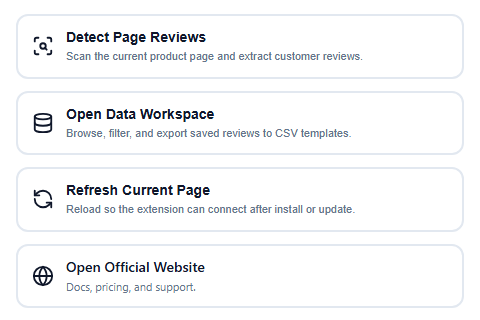
Open a product page whose reviews you have permission to export. Scroll down until you can read individual comments. Some storefronts load the star rating near the product title immediately but wait until you reach the review section to load the widget. Open the extension and click Detect Page Reviews. When a source appears, choose Scrape Reviews. If the page offers several sources, check the product handle before you start.
The detector supports older Loox review frames and newer product widgets. When a scrape is interrupted, return to the same page and run detection again. If the extension finds a matching unfinished task, it shows how many reviews were saved and offers to resume. That matters on a long product page where restarting would mean collecting pages you already have. Widget detection guide
Find the reviews behind a specific question
Choose Open Data Workspace and select your task. Check the source page, product handle and Total Saved before working with the records. For the mug example, search for “espresso” and choose With Photos. Read the matching comments alongside their images. A photo of the mug beside a machine may answer the customer’s question more clearly than a five-star rating.
Pay attention to the difference between matches and selections. Filtered exports every record that meets your current conditions, including matches on later pages. Selected exports the cards you checked. Use the former for a complete report and the latter when you want to send a colleague three specific examples. If the workspace shows a ten-review preview on a larger task, check the account that holds your Loox access. Account and legacy purchase guide

Export Loox reviews to CSV or Excel
For analysis, choose Default (All Fields), set the row scope and pick XLSX or CSV. XLSX is convenient for a colleague opening the file in Excel. CSV is useful when another tool expects a text file. Compare the export count with the subset you intended, then open the download and check a familiar review. When importing CSV into a spreadsheet, treat long product identifiers as text to preserve their digits. CSV and Excel walkthrough
Photos and videos have a separate download path. Select the relevant reviews and choose Images ZIP or Videos ZIP. The archive gives you local files to inspect alongside the spreadsheet. For a photo-review import, keep the public image URLs as well. A destination service needs an address it can fetch, while a teammate preparing a support response may need the image file itself.
Prepare a review file for migration
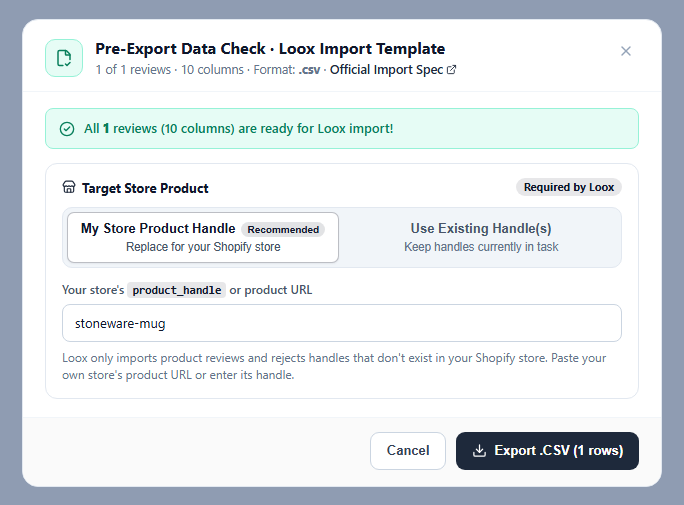
Start with the destination product. For a product URL ending in /products/stoneware-mug, the handle is stoneware-mug. In the Loox import template, enter the target handle and review the pre-export check. A single custom handle applies to the entire export, so split a mixed task by product or keep individually verified handles. Check dates, ratings and empty review bodies before writing the file. For a review consisting only of a photo, you can skip that row for the import and retain it in your original archive. Loox custom-file requirements
If you own the store and simply need its official Loox export, Manage Reviews in the Loox admin already offers a CSV download. This distinction matters when switching apps. For example, Judge.me’s migration guide starts with the native Loox file. Choose the file your destination expects before spending time editing columns. Loox admin export instructions · Judge.me migration guide
To try the workflow, pick one familiar product and export a small selection first. Check a comment, its product handle and one photo against the source page. Once those line up, you can use the same saved task for a larger export. Loox Reviews Exporter for Chrome