Activate Loox access or sync a legacy purchase
Resolve a ten-row preview and choose the sign-in path for your purchase.
Activate Loox access or sync a legacy purchase
Match the account to the purchase
Reviews to CSV purchase. Use Sign in and authorize the account that bought the pass or membership. Check the product and expiry in My Products. Membership unlocks supported platforms through member status. The one-time Loox pass runs for one year without automatic renewal. It grants Loox export access, so the account can use the Loox workspace without displaying a Pro Member badge.
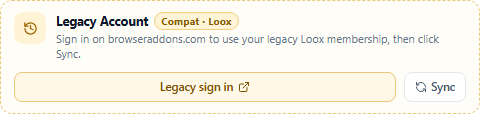
Browser Addons purchase. In the Loox-branded extension, open the account panel and choose Legacy sign in. Sign in at Browser Addons, return to the extension and click Sync. A recognized legacy Loox purchase unlocks Loox. A new Reviews to CSV login takes precedence when present.
Verify against a saved task
Open a Loox task with more than ten records. Compare Total Saved with the preview banner. Without Loox access, preview and export are capped at the first ten. After syncing the correct account, reopen the task and check that search, selection and full export are available.

If still locked, send support the purchase channel, extension version and displayed account status. The old guide describes a Gumroad email/code form for an earlier client. If that receipt is your only proof of purchase, contact support rather than sending a license code in a public screenshot.
Related guides · Get started with Loox Reviews Exporter for Chrome · Understand Chrome site access and local review storage
Sources · Loox Reviews Exporter · Browser Addons · Activation