
Resolve Loox CSV validation and import errors
Check dates, empty text, image URLs and rejected rows before retrying an import.
Resolve Loox CSV validation and import errors
Before downloading
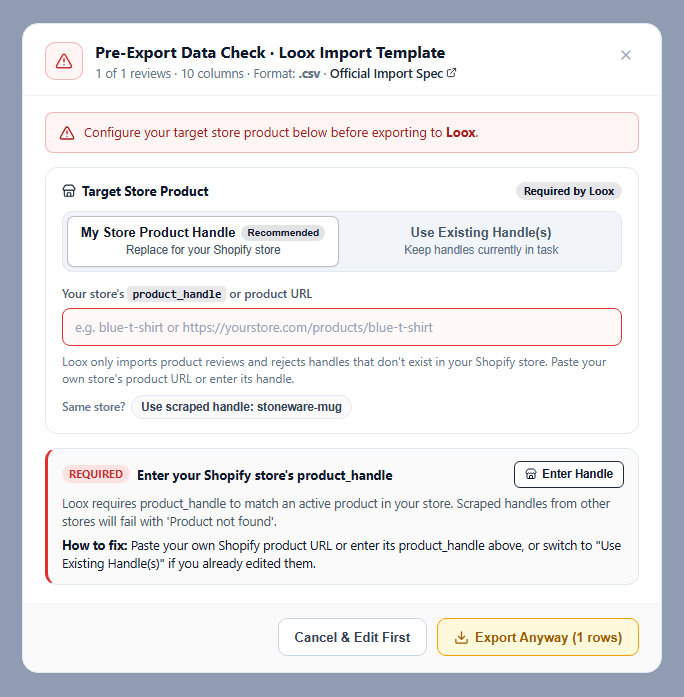
Choose the Loox import template and inspect Pre-Export Data Check. Compare the effective row count with your selection. Check the destination product, author, review body, whole-star rating (1–5) and original review date. The Loox template writes dates as YYYY-MM-DD. Missing or future dates need attention. Use Cancel & Edit First to return to the task.
Examine automatic adjustments, particularly for reviews without written text. The checker may offer or preselect placeholder text. To preserve what the reviewer actually said, skip empty-body rows for this import or keep them in a separate all-fields archive. Restore a missing date from a reliable source before using the workspace timestamp editor.
After uploading to Loox
- Follow Loox's custom-file import workflow and keep the CSV in UTF-8. Use the current official template if Loox flags missing columns. The extension's preflight checks fields locally; Loox validates the uploaded file against its current rules.
- Read the import summary email. For a rejected image, open the public URL and verify the format Loox accepts. For a rejected date, check the actual CSV value after spreadsheet editing.
- Work from the error file containing the unsuccessful rows. Correct one representative row first, then retry the rejected set. Compare the success count with the previous summary to avoid uploading successful reviews again.
Related guides · Map Loox reviews to the correct Shopify product handle · Download Loox review photos and videos as ZIP files
Sources · Loox · Importing Reviews Using a Custom File · Loox · Fixing Errors on Spreadsheet Imports